




Picture a made-up Saturday in Glen Waverley. Someone has three places saved on their phone. A restaurant on the Kingsway strip, a shop inside The Glen, and a clinic in an office nearby. Before choosing where to go, they open the websites to check the offer, hours and booking information.
Before someone makes the trip, give them four clear answers on the website:
A shop inside a centre may already appear in its directory. An office or clinic may have an address that identifies the building but not the right door. The business website can add the practical detail a new visitor needs.

A streetfront retailer, a centre tenant and an appointment business need different details on their pages, beyond a name and address.
The first is street trade. Shops and eating places along the main shopping strip can be seen from the footpath. A passer-by may choose to enter without checking a website. The page also needs to help someone comparing businesses before leaving home.
The second is a shop inside a centre. The shopping hub includes the Kingsway strip and The Glen shopping centre. For a tenant with its own website, there are two records to keep consistent. The centre’s own directory, and its own website.
The third is an appointment business. An office, a studio or a clinic may see visitors by appointment. Its page should say when a booking is needed.
All three share a reader who has not been there before. What differs is the information they need before booking or setting off.
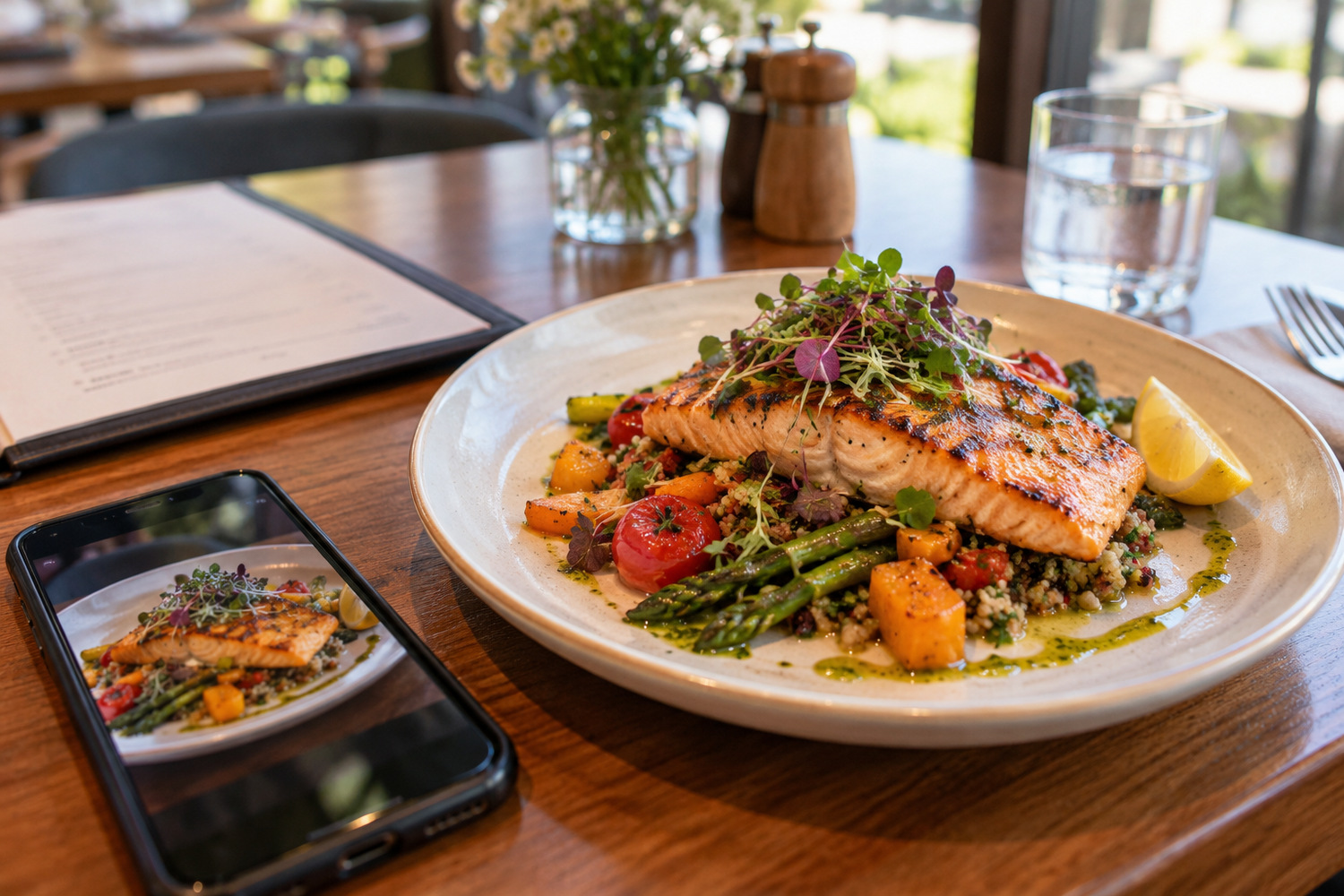
Help a first-time customer decide whether the trip suits what they need.
For a restaurant, that means three things. The current menu, dated opening information, and photographs of the real room and food. Say plainly whether a booking is needed or whether walk-ins are normal. For keeping those details accurate through a busy shift, see restaurant website during service.
For a shop, describe the range or service accurately. A page that implies unverified stock availability can prompt a wasted trip. Describe the range without promising that an item is on the shelf unless the business can support that statement.
If an outside provider handles bookings, link to the correct business or booking page. Check the destination on a phone. A generic search screen makes the visitor find the business again instead of continuing the booking.
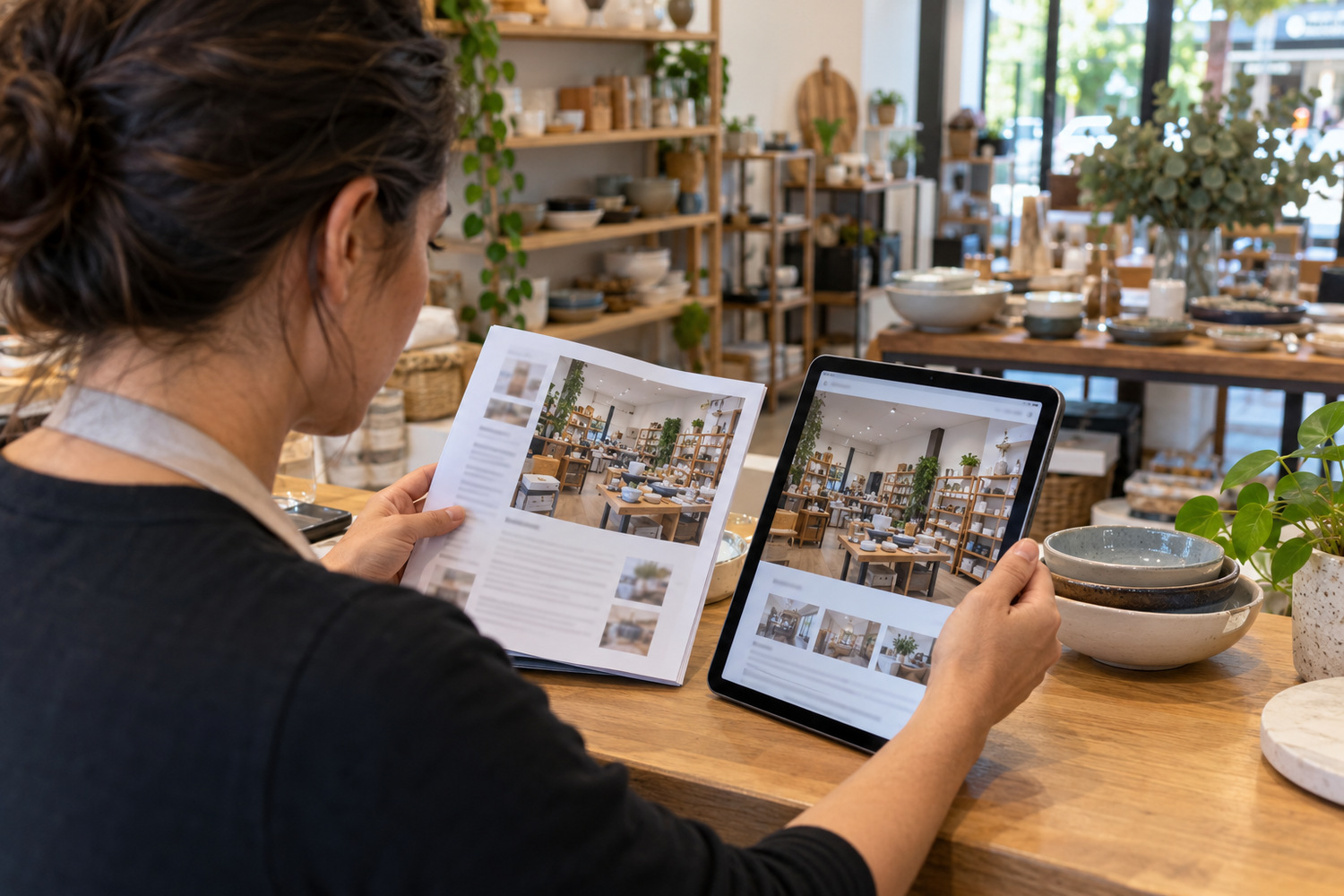
Give the centre listing and your own website distinct jobs, with the same core business details on both.
Check which details the centre listing carries before deciding what your own site needs to add. A directory can help a visitor find a business and its location. Your site can develop the offer, explain an appointment and give a current contact path. The useful split depends on what each page provides.
Take a made-up homewares shop on an upper level of a centre. The table illustrates how its directory listing and website could share the work. It describes no actual tenant or directory fault.
| What the visitor wants to know | The job the centre listing does | The job your own site does |
|---|---|---|
| Does this business exist, and where is it in the centre? | Names it and places it in the building | Confirms the street address, the level and the entrance to use |
| Is this the right shop for what I want today? | Shows which kind of business it is | Describes the range or service in the owner’s own words |
| How do I book, or ask a question? | Passes the reader to the business | Carries one booking or enquiry path, and says who answers it |
Two things follow from that split. Keep the two records consistent. Different names, levels or phone numbers leave the reader with a conflict to resolve. Then write your site for somebody who never sees the listing at all, because someone may open your page directly from a search result.
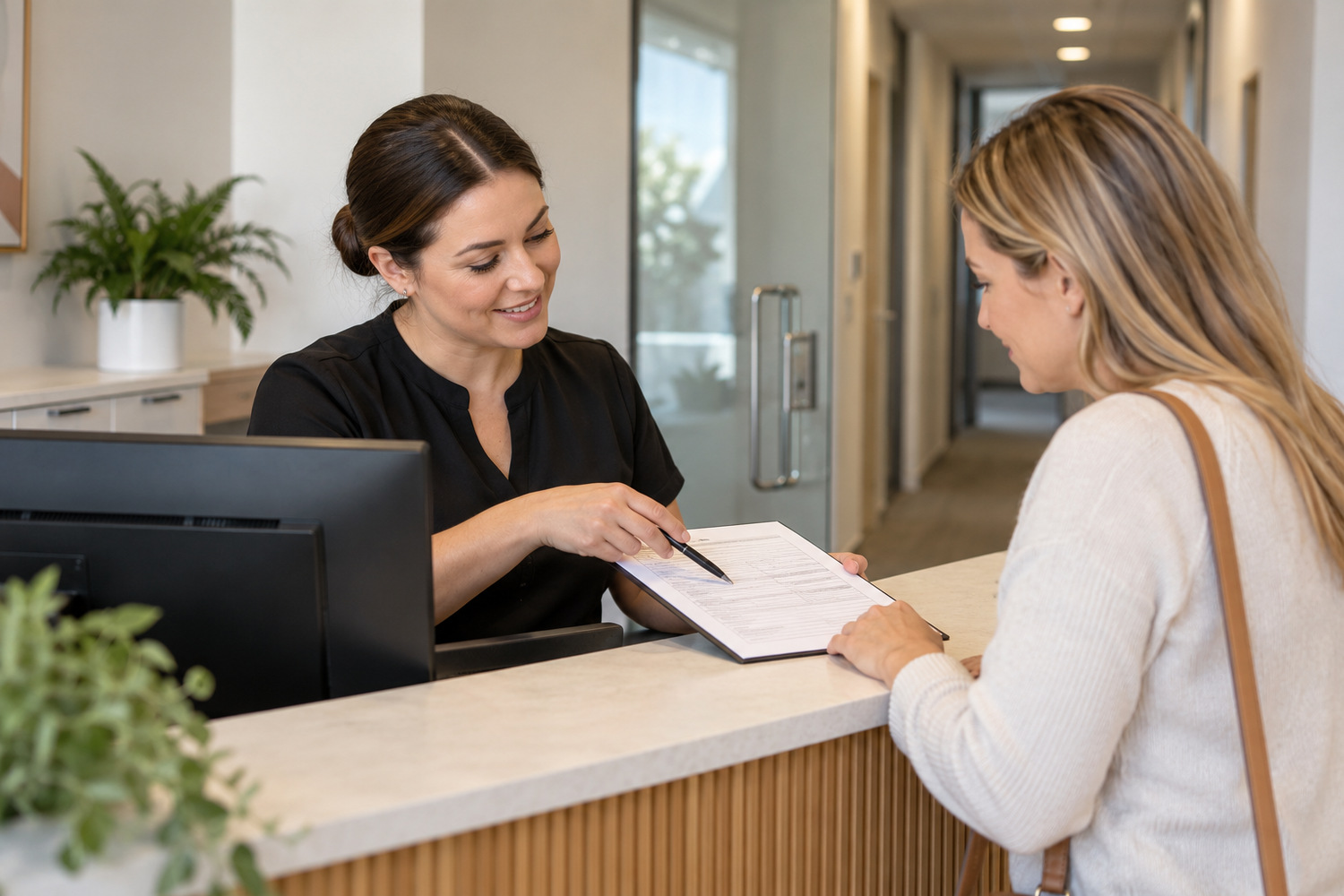
Put appointment information in a sequence that helps a new visitor choose the service and find the right booking.
Put the offer or service first, in plain words. Then, where it matters, who the appointment is with. Then the location, including the level or the suite. Then the booking action itself. That order gives a new visitor a path from choosing a service to booking it.
A general office enquiry and a clinical appointment need different information. An office can use a short form and state its genuine reply arrangements. A clinic should identify the service, the practitioner where relevant, and the appointment location. Describe the available service without advising someone about their condition.
For organising information across several practitioners, see multi-practitioner clinic website.
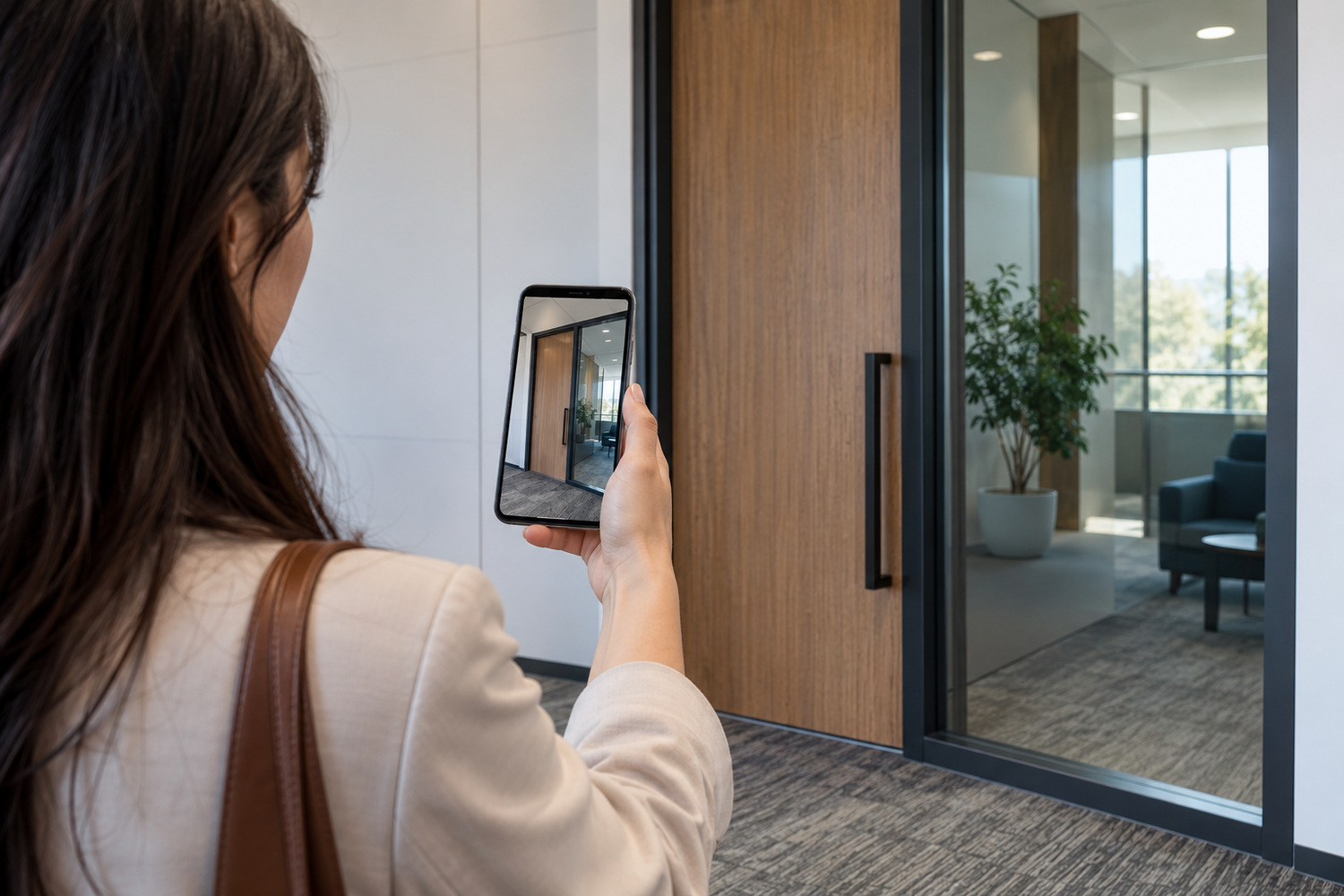
A map pin may identify a building without showing the entrance a visitor needs. The door may be on another level or inside a building with several entries.
So write what you can verify about your own address. The street number. The level or the suite. Which entrance to use, and the sign to look for. A current photograph can help someone recognise the doorway.
Where official directions cover your location, link to them alongside the details of your own entrance. Roads and works can change, so review the link when arrival information changes. The Glen publishes its own directions page. It offers arriving by car and arriving by public transport as separate options. That is the kind of current source worth linking to rather than copying out.
Be careful what you claim about getting there. Only name a travel mode, an access feature or a parking arrangement where it is true of your business and you can show it. An arrangement you do not control is not yours to promise.
Keep two kinds of time apart as well. Trading hours say when the doors are open. Appointment availability says when somebody can see you. Merging the two can leave a visitor unsure whether an appointment is available.

Start by checking these four parts of the visit-planning information.
Choose any further features by the job they need to do. Add a feature only when it helps a visitor make that choice or take the next step. If you also want to explain the areas you serve, see covering nearby areas on your website. Keep that coverage information distinct from directions to the premises.
Decide who will keep the information current. A menu changes. A business moves to another level. A practitioner leaves, or a booking link changes. Make sure the person responsible can correct those details using the editing tools the site provides. CJ Digital’s website design and development page describes a build on WordPress, where the owner changes the text, prices and photographs themselves.
So try this on your own site this week. Open it on a phone and book or enquire as a stranger would. Then stand at your own door and ask whether the page told you how to find it.
It depends on what the listing explains and lets visitors do. Check whether someone can judge the offer, find the entrance and make the right enquiry from that page. Use your own site for the detail and actions the listing does not provide.
Not as a rule. Visitors need a clear booking path that opens the correct business or reservation page, whoever provides it. A venue that accepts walk-ins only can explain that without adding a booking system.
Not necessarily. Explain when reception is available and when appointments can be booked, particularly where those hours differ. State the actual arrangements so visitors do not mistake an open reception for an available appointment.