




Business email can end up in the spam folder when the receiving mail service can’t confirm it really came from your business. Services such as Gmail check whether your domain has approved the service that sent the message. They also check for a signature that links the message to your domain. When those checks are missing or fail, genuine mail can be treated as possibly fake. It may then land in junk or be turned away.
Say a workshop in Melbourne’s south-east moves its email to a new provider. Its service reminders keep going out, but nobody updates the domain’s records, and customers stop seeing them in their inbox.

Your domain is the part of your email address after the @. When a message arrives claiming to come from that domain, the receiving service looks for proof that your business sent it. That proof sits in records published for your domain and in the message itself.
The proof can fail in more than one place:
Any one of these can make genuine mail look as if someone else sent it in your name.

SPF (Sender Policy Framework) is a record your domain publishes, listing the services allowed to send email for it. A receiving service compares the server that delivered a message with that list.
DKIM (DomainKeys Identified Mail) adds a digital signature to each message as it is sent. The receiving service checks the signature against a key published for your domain, which links the message to your domain.
Google sets out what it expects in its email sender guidelines. They cover mail sent to personal Gmail accounts, the addresses ending in @gmail.com or @googlemail.com. As read on 8 November 2026, the guidelines ask all senders to:
Google warns that mail failing its authentication checks might be marked as spam or rejected. Other mail services set their own rules.

Forward and reverse DNS records tie a sending server’s internet address and its name to each other. A receiving service can use them to check the server is what it claims to be. TLS protects the message on its way between servers. Google lists both among its requirements for all senders.
You won’t find either setting in your inbox or your email program. They belong to whoever runs the server that sends the mail. That could be your mail provider, the company behind a tool that sends on your behalf, or your web host. Your job is to know who that is for each kind of email your business sends: everyday replies, quotes and invoices, booking confirmations, and form notifications.

Your website is a sending service too. Form notifications and automatic replies to customers leave from the web server or a mail service the website uses. If your domain does not approve that route, those messages can be filtered like any other.
Some forms also put the customer’s own address in the From line. If that customer uses Gmail, a notification your web server sent now claims to come from a Gmail account. Google’s guidelines tell senders not to impersonate Gmail addresses and warn that doing so might affect delivery.
Our article on why your website’s contact form isn’t converting enquiries covers the form itself, including the delivery checks worth running on it.
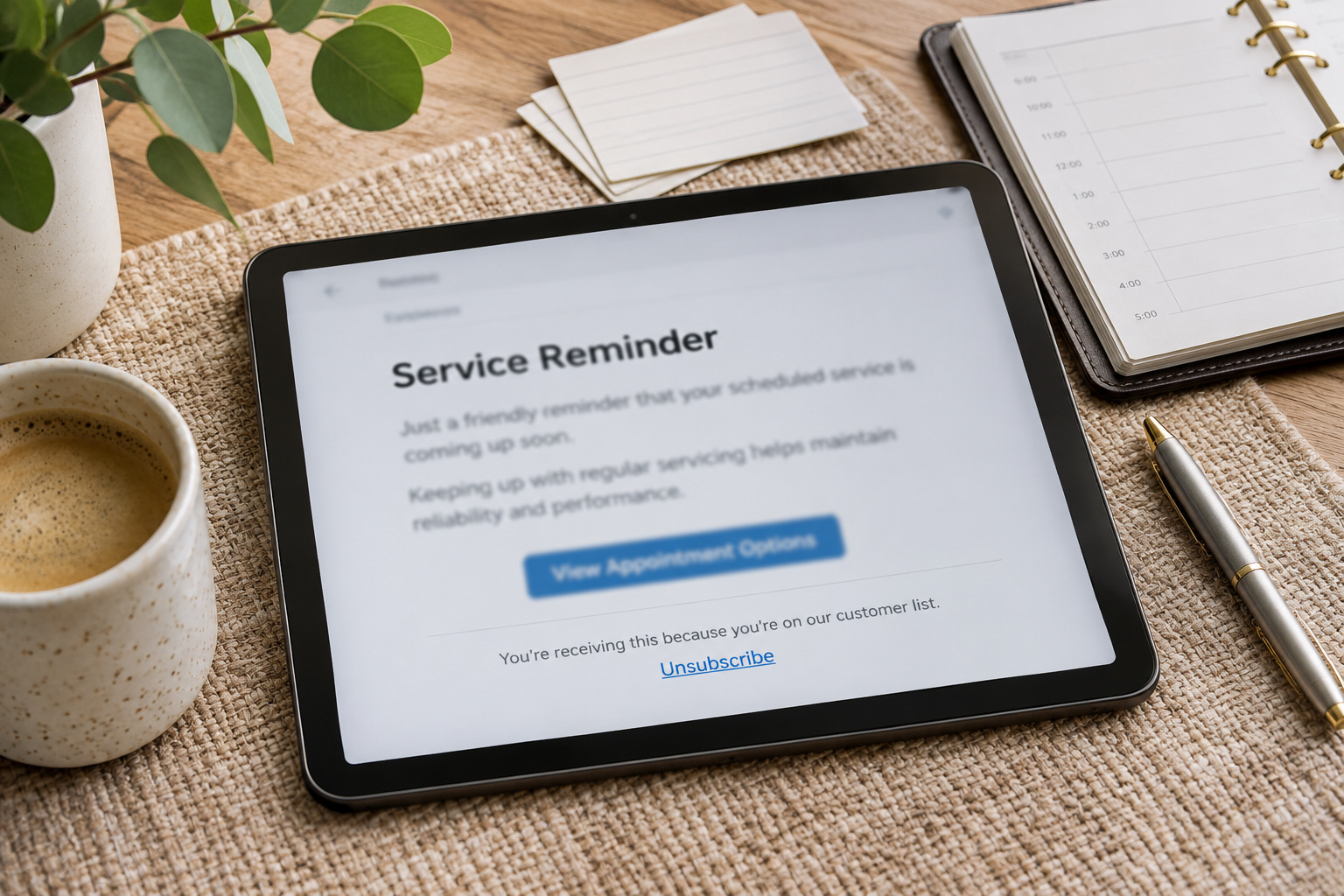
Service reminders, newsletters, and offers go to many people at once, so the spam-rate requirement in Google’s list matters here. The rate Google means is the one shown in Postmaster Tools, Google’s reporting tool for senders. Google’s guidelines suggest keeping that rate below 0.1 per cent and never letting it reach 0.3 per cent.
Anyone sending more than 5,000 messages a day to personal Gmail accounts must meet extra requirements as well. On top of everything in the list for all senders, the guidelines as read on 8 November 2026 ask them to:
Whether you may send a reminder or offer at all is a separate question about consent under Australian law. Our article on getting back to customers first sets out the rules on sending service reminders.

You can run this check yourself, with no developer needed. Send an ordinary business email from your business address to personal accounts with two or three providers. A Gmail address and an Outlook.com address make a good pair. Use a real quote or reply, written as you would to a customer, so the result reflects the mail your customers get. Then note which folder it lands in at each provider.
Next, fill in your website’s own form, giving one of those personal addresses as the customer’s. Check where the notification and any automatic reply end up.
Treat the result as a pointer rather than a diagnosis. If your email lands in spam at every provider you tried, look first at your own setup: SPF, DKIM, and the sending server checks above. If it lands in spam at one provider only, raise it with whoever manages your domain, and read that mail service’s own guidance for senders. If only the form’s messages go astray, the website’s sending route is the place to start.
A clean result is a good sign, but it does not guarantee delivery to every customer.

Put one question to them: “Which services are allowed to send email for our domain, and are SPF and DKIM set up for each of them, including the website?”
That person might be the contact at your domain registrar (the company you register the domain name through), the admin for your mail provider, your web host, or your IT support. Not sure who controls the domain at all? Our guide on who owns your website when the agency relationship ends sets out what you should hold.
Ask for the answer in writing, so you hold a list of every service that sends email as you. Ask again whenever you change mail provider, add a tool that sends email for you, or move the website. That is the step the workshop missed when it changed provider.
For the website itself, CJ Digital’s website support packages include local hosting and ongoing backend maintenance. The domain’s mail records are a separate job, so the question above still goes to whoever manages your domain.
Each mail service runs its own filtering. Gmail applies Google’s published sender requirements, and other services set their own, so a message that gets through at one service can still fall short at another.
Yes, if you send email to personal Gmail accounts. The basic requirements cover every sender regardless of size, and a further set starts only above 5,000 messages a day, as Google’s guidelines read on 8 November 2026.
It can. Website mail sent by a route your domain hasn’t approved may be treated as suspect by the services receiving it.