




Four hundred people came to your site last week. Two filled in the contact form. You’ve been telling yourself the numbers will come good once traffic grows, but they won’t. The form is the problem.
The gap between visitor and enquiry is where small business websites commonly lose leads. By the time someone lands on your contact page, they’ve already decided they want to reach out. Whether they follow through comes down to how much friction the form puts in the way.
We do website development work in Melbourne at CJ Digital, and contact form failures are one of the most common causes of low-lead complaints we hear from new clients. The traffic is there. The form is stopping it from converting.
Here’s what to check.
Every extra field you add to your contact form loses you submissions. This is a well-studied pattern in conversion design, and the numbers are stark. A 2025 analysis of 404 landing pages by Neil Patel’s team found one-field forms converted at 18.2%, three-field forms at 11.5%, and seven-field forms at 7.6%. HubSpot’s study of 40,000 forms found that reducing a form from four fields to three increased conversions by around 50%.
The working rule: ask for what you need to reply, and nothing else. For a standard contact form, that usually means three fields:
Everything else – company, role, budget, how did you hear about us, marketing consent checkboxes – costs you enquiries. If a field doesn’t change the reply you send, cut it. You can ask follow-up questions once a real person is on the line.
There is a caveat. Longer forms aren’t universally bad. Where the reader’s intent is strong and the form is qualifying for something valuable (a detailed quote, a consult, a complex service), more fields can sometimes lift completions because users self-select. Zuko Analytics’ 2025 benchmark data suggests field count and completion rate are only weakly correlated once motivation is high. For a standard “get in touch” form on a service business website, though, shorter wins.
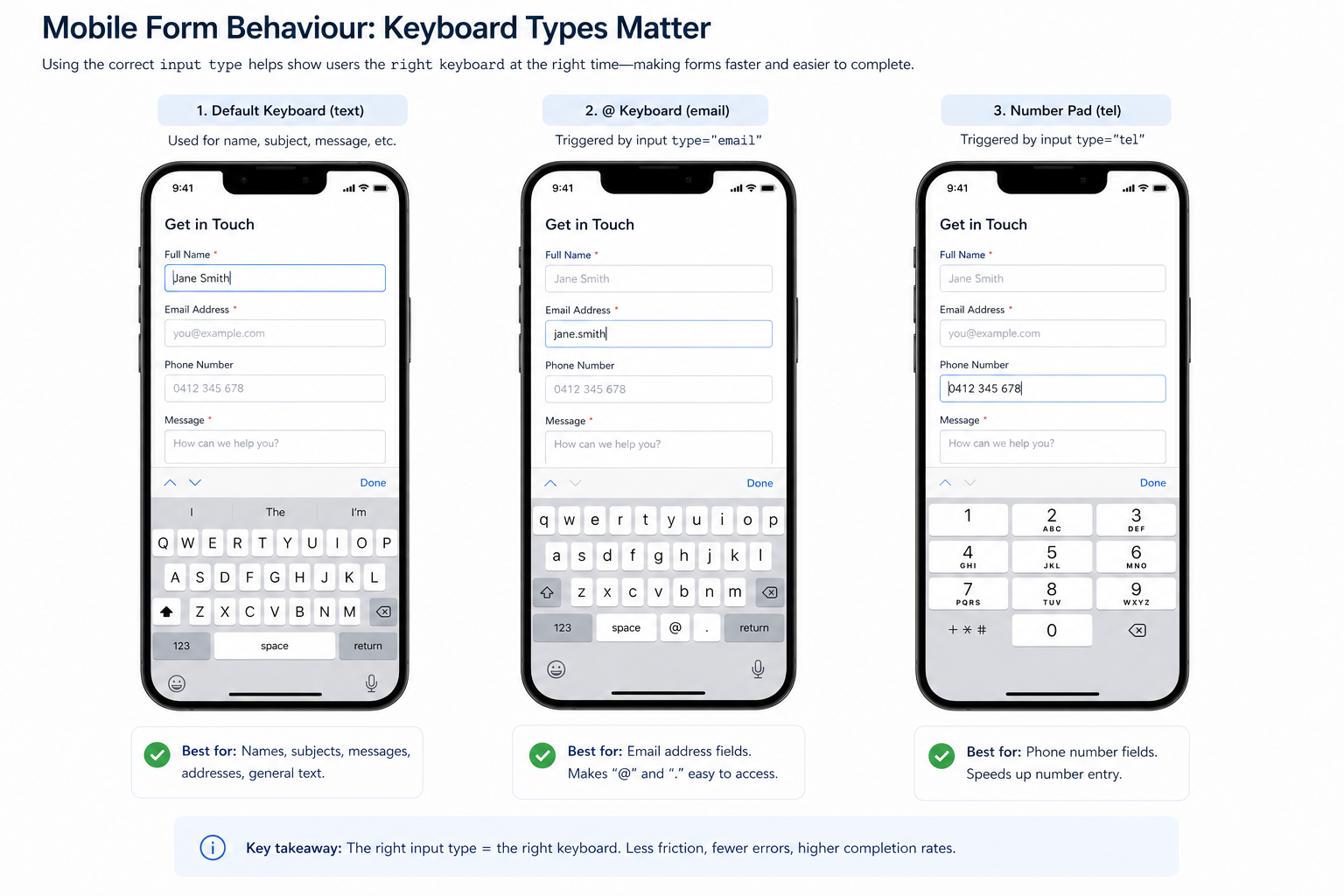
More than half of website traffic is now on mobile, and mobile form completion runs around 8 to 9 percentage points below desktop. The gap comes down to design. The fixes are small, and they’re rarely tested.
Four things to check on your form on a phone:
If your developer hasn’t looked at your form on a phone in the last year, the issue is almost always here.
The submit button is the moment of highest perceived risk in the whole enquiry. The visitor is about to hand over contact details to a stranger. Whatever reassurance you’ve built up across the rest of the site has to be present, visually, at that exact point.
Effective trust signals near the submit button include:
Trust signals placed at the form itself produce a 15 to 30% lift in completions, according to 2026 form benchmarks from FoundryCRO. The mistake is putting them on the page but not in the visual vicinity of the submit button. On mobile, eyes track vertically; if the reassurance is in the sidebar or the footer, it’s invisible at the point of decision.
What doesn’t work: generic security seals (they stopped carrying weight when users realised anyone could buy them), stock-image team photos labelled “trusted by hundreds,” and “as featured in” logos with no corresponding coverage. Trust signals need to be specific and verifiable, or they subtract from trust rather than add to it.
Every contact form needs protection from bots, but the standard approach – Google’s reCAPTCHA v2, with the “I’m not a robot” checkbox and traffic-light puzzles – costs you real enquiries. The image grids add 10 to 30 seconds of friction and can drop completions by 8 to 15% on mobile, where the tap targets are small and fiddly.
Three lighter-touch options protect your form without the drop-off. Here’s how they compare for a standard contact form.
| Method | How it works | User friction | Best for |
|---|---|---|---|
| Honeypot field | A hidden field that bots fill and humans never see. The server rejects any submission where the field is filled. | None. Invisible to humans. | Low-risk contact forms. Combine with another layer for higher-value forms. |
| reCAPTCHA v3 | Assigns each visitor a background score between 0.0 and 1.0 based on their behaviour on the page. The server decides the threshold. | None for typical users. Visitors on VPNs or strict privacy settings can occasionally be flagged. | General-purpose forms where Google Analytics is already on the site. |
| Cloudflare Turnstile | Runs a background challenge invisibly in most cases. No data sent to Google. | None for typical users. | Sites where privacy is a consideration or that already use Cloudflare. |
For a standard small business contact form, honeypot combined with reCAPTCHA v3 or Turnstile is the setup we’d use. The visible v2 checkbox should be off the table unless spam is already out of control.
The thank-you page is often the most underused part of a contact form. Many small business sites show a one-line “Thanks, we’ll be in touch” and that’s it. The visitor has just converted. They’re warm. Their attention is on you. You have thirty seconds before they close the tab.
A working thank-you page gives them something to do next:
The thank-you page is also the correct place for your Google Ads conversion tracking, Meta pixel events, and any analytics goal. Putting the tracking on the form submit button rather than the thank-you page will record every failed submission as a conversion, which corrupts your data.
This is the worst one on the list, because you never see it happen. The user submits the form. The form says “thanks.” You never get the email.
Three things commonly cause this:
The fix: route form submissions through a transactional email service (Postmark, SendGrid, Amazon SES or Mailgun) rather than through the website’s hosting provider, and configure SPF, DKIM and DMARC on the sending domain. Ongoing website support work from a competent developer should include a test submission to the live form every month to confirm the pipeline is still delivering. If nobody has tested yours recently, submit a form as a user and see if the email lands.
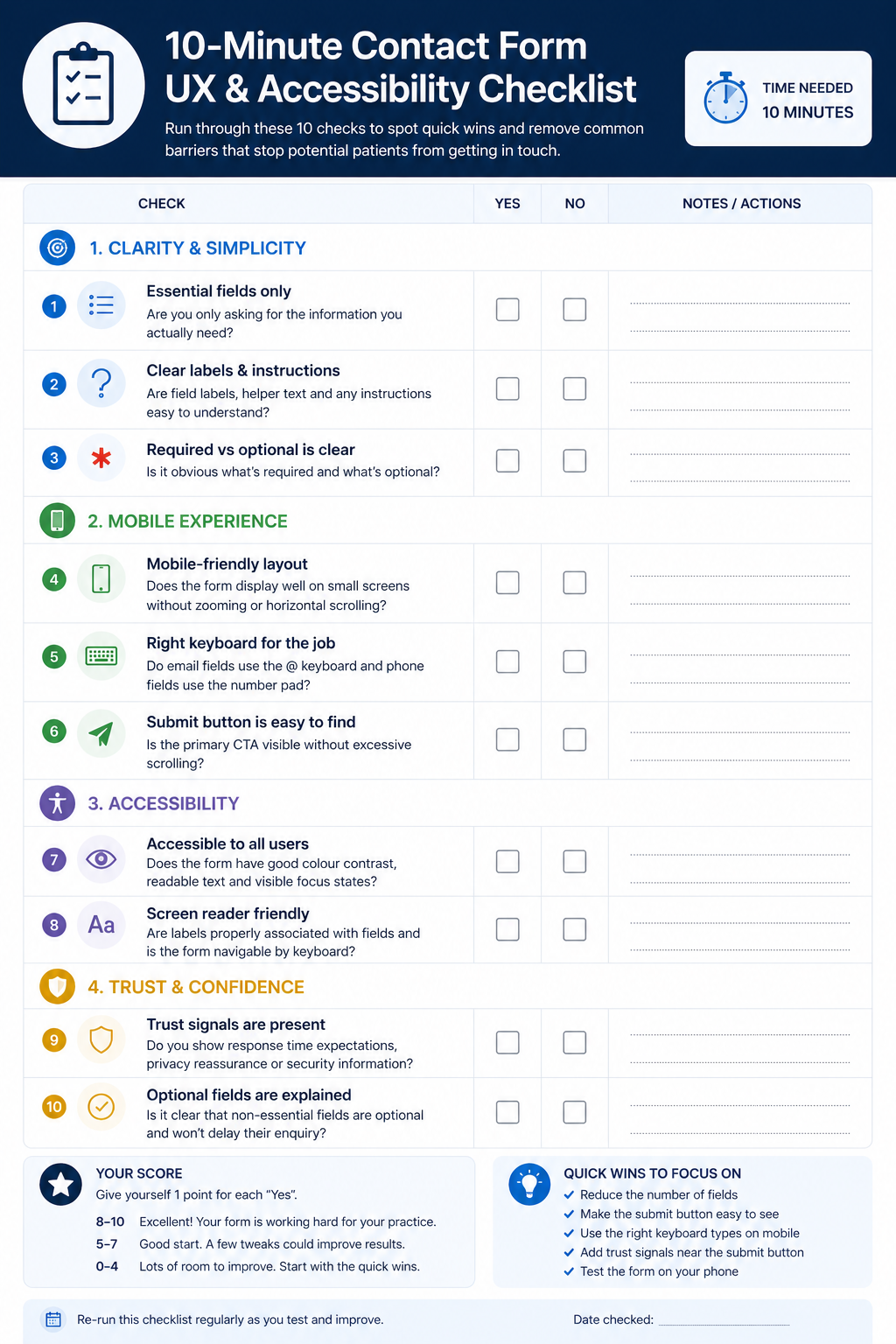
Open your website on your phone. Not on your desktop, not on the staging site: the live site, on the phone you’d hand to a customer.
Then run through this checklist. Every “no” answer is a known cause of lost enquiries.
If you got through that with fewer than six yes answers, the form is the bottleneck that needs attention before anything else.
Fixing a contact form is usually a one-day job for a developer who knows what they’re doing. The return on that day is measured in the leads the form was losing every week before. If your traffic is steady but your inbox is quiet, the contact form is where to start looking.
Send us the URL of your contact page and we’ll run the self-test above against your form, then tell you plainly which of these are costing you enquiries. No sales call attached.