




Moving your website to a new host means copying the site to the new server, testing the copy, then changing your domain’s settings so visitors reach it. Your email runs on separate settings on the same domain, and keeps working only if those are still correct after the move. List every setting before anything changes, and switch only when the email ones are in place.
Say a Melbourne physio practice moves its website to an Australian host before the end of the financial year on 30 June. The new host asks it to switch the domain’s nameservers, which hold its settings, to the new host’s. After that, the domain’s settings are read from the new host, so the email ones must be there first.

DNS records are your domain’s settings that tell the internet where to find things. One record sends visitors to your website’s server. Another, the MX (mail exchange) record, directs your email. Microsoft calls the MX record “required” and says it “specifies where email for the domain should go”.
Moving your website doesn’t move your email. When a business points its MX record to Microsoft 365, Microsoft says new email starts arriving there while its website “keeps working where it is”. A host move changes the website’s record, and email is affected only if its records are lost, changed or left behind.
| Part | What it does | What to check before the move |
|---|---|---|
| Website files and database | The site itself: pages, images and content | The new host has a full, working copy |
| Website record | Sends visitors to your website’s server | The setting you change to make the move |
| MX record | Sends your email to your mailboxes | Written down, and set up wherever your settings will be kept |
| SPF record | Lists who may send email for your domain | One record only, copied as it is, plus the new server if your website form sends email |
| Mailboxes and old messages | Held by your email provider | If that is the old web host, copy old messages before the account closes |
The first two rows are what the move changes. The last three decide whether email keeps working, and the website won’t show whether they are right.
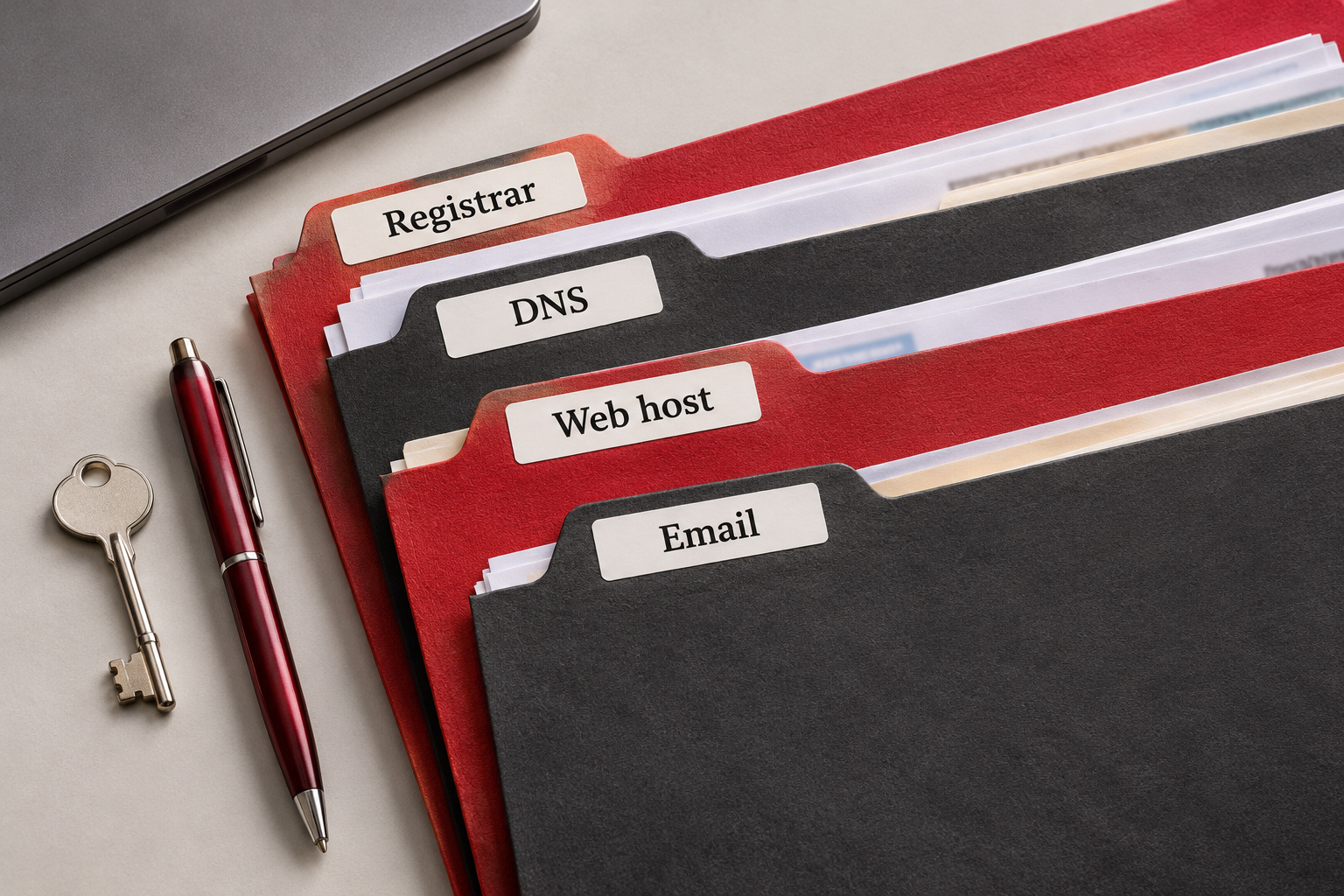
One company or several can hold the four accounts below. For each, know the company and who has the login:
The DNS host matters most, because that is where settings are changed. Its nameservers are the servers that “store your domain’s DNS records”, as one DNS provider’s guide puts it. Pointing the nameservers to a new host moves the DNS host too, so every record must be set up there before the switch.
If you’re unsure about any of them, our guide on who owns your website when the agency relationship ends covers which accounts and logins to keep.

Your developer or new host may do these steps, but knowing the order lets you check them. They follow Google’s hosting guide, with the email steps added:
Without that first list, the records at the new DNS host have nothing to be checked against.

Three record gaps can cause email trouble, and none shows on the website:
Each gap is fixed by putting the right record in place. For the physio practice, that means MX and SPF records waiting at the new host before the switch.

After the switch, run these checks:
Repeat the email and form tests the next day. Internet providers usually keep saved copies of DNS records until the TTL runs out, so the change reaches networks at different times.
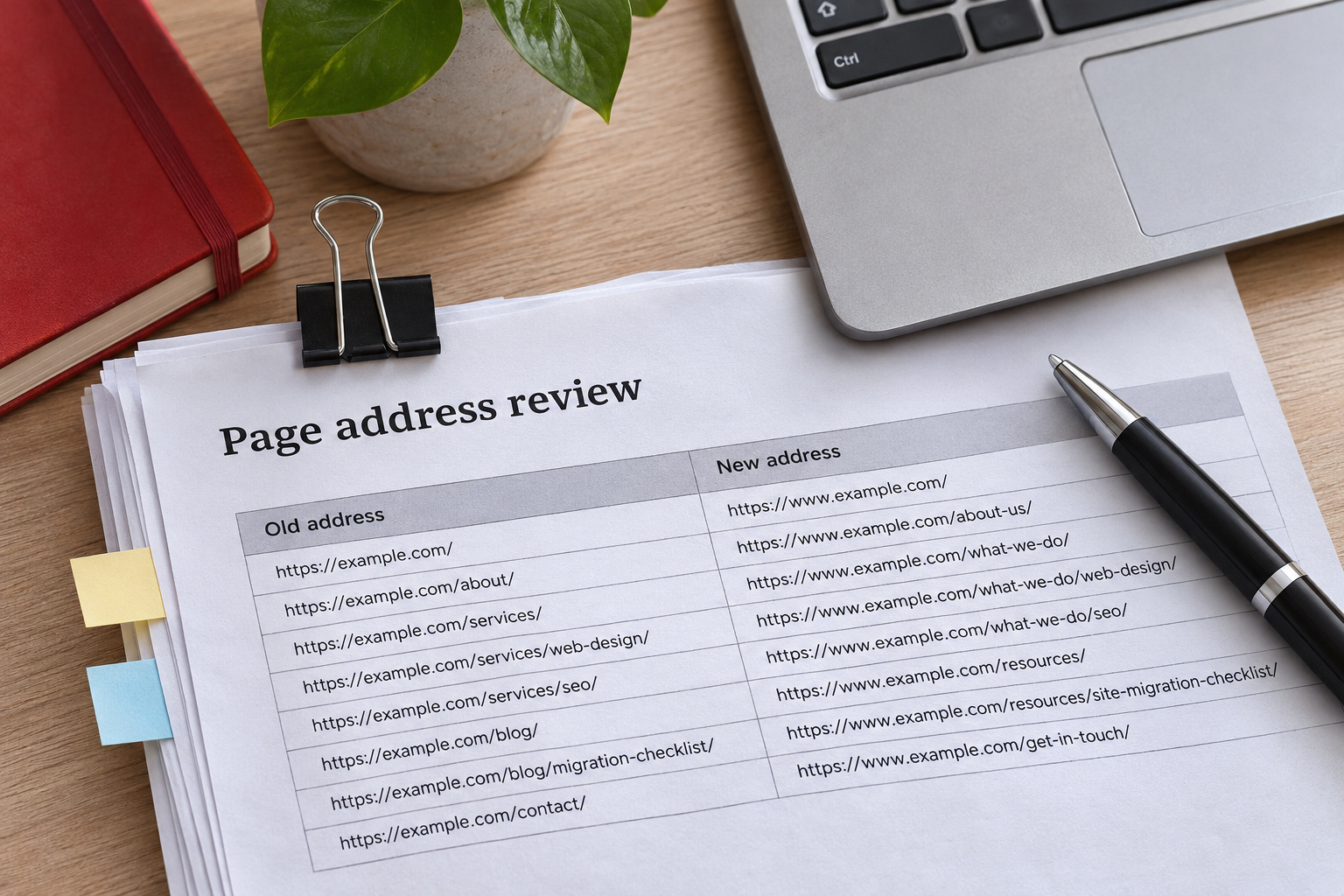
Google’s hosting guide covers only moves that keep every page at the same web address. If page addresses change, it is a rebuild with redirects, covered in our guide on how to rebuild your website without losing your Google rankings.
CJ Digital’s Australian hosting lists Easy Migrations and local phone support among its benefits. Whoever runs your move, ask to see the DNS records list before you book it.
Only if the old web host also runs it. Otherwise your mailboxes stay with your email provider and keep receiving mail wherever the website lives, provided the MX record is in place.
In Google’s order, the old host keeps serving the site until visitors have shifted to the new one. How long that takes varies, so let the old host’s traffic decide when to close it.