

An accessible website is one a person can use with a keyboard instead of a mouse, with a screen reader that reads the page aloud, or with the text zoomed to twice its size. WCAG 2.2 is the standard that sets out what website accessibility takes, and Level AA is the sensible target for a business site. You can find the most visible faults yourself with the Tab key, your browser’s zoom and a close look at your contact form.
Say a Hawthorn cafe posts its new menu as a photo each week. A screen reader can’t read that menu unless the same words are in the image’s text description or on the page.
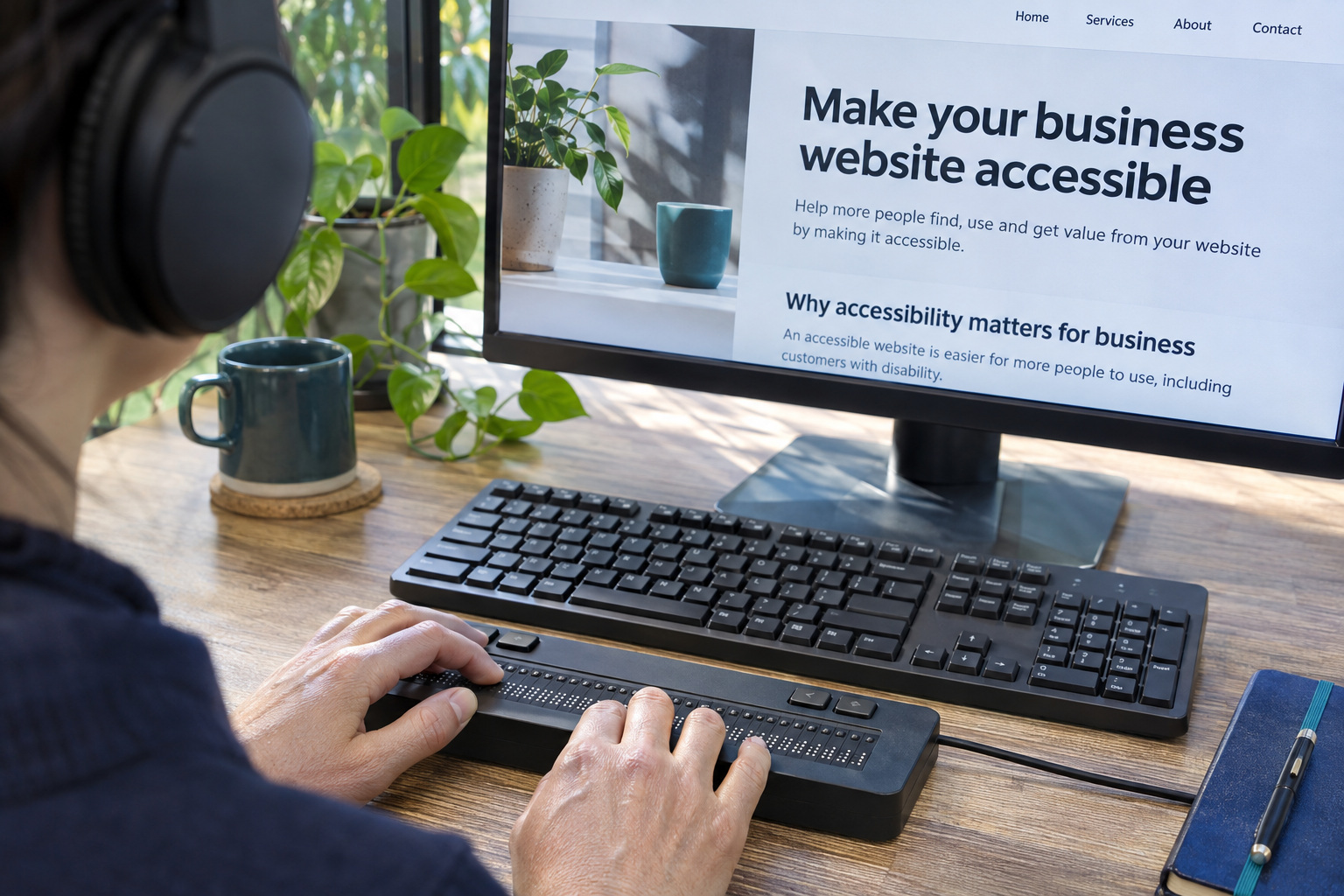
WCAG 2.2 is version 2.2 of the Web Content Accessibility Guidelines, published by the World Wide Web Consortium (W3C) to make web content usable by people with disabilities. Its rules sit under four principles. People must be able to take in the content, by sight, sound or a screen reader. Every part must work, including from a keyboard. The words and the way the site behaves must make sense. And the code must work with the tools people use.
Each rule has a level. A is the lowest, then AA, then AAA. A site that meets AA also meets every A rule. The W3C does not recommend requiring AAA across a whole site, because some content can’t meet every AAA rule.
Version 2.2 also covers the older versions. Content that meets WCAG 2.2 meets 2.0 and 2.1 as well, and the W3C’s working group recommends that sites adopt 2.2 as their target.
For a small business site, aim for Level AA under WCAG 2.2. Put it in the brief for a new build, and ask about it when someone quotes a change. Clinics and practices have a few extra questions to think about, which we cover in our piece on accessibility on a healthcare website.
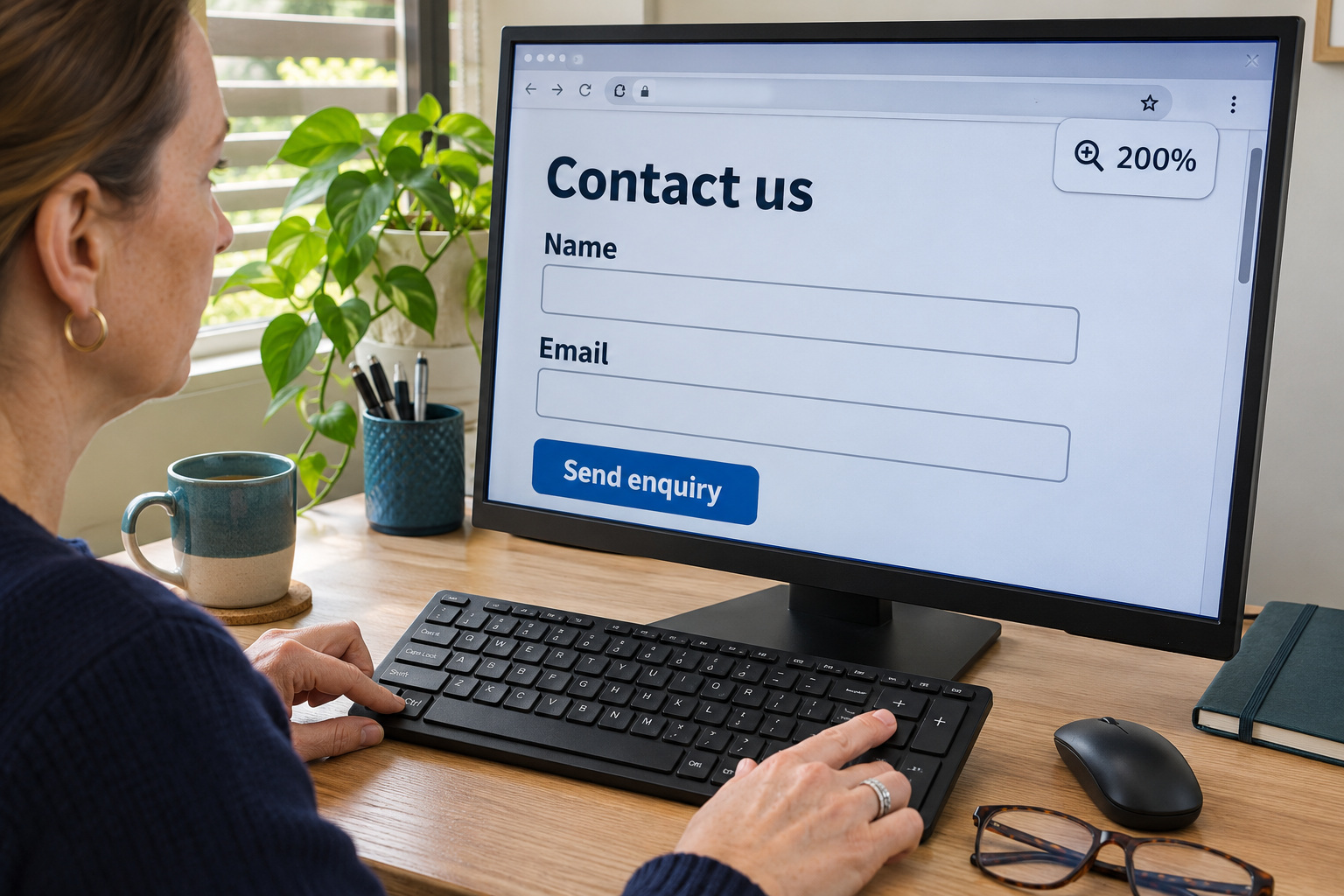
Open your homepage and your contact page in an ordinary browser on a laptop, logged out of the editing screen, so you see what a visitor sees. Each check below names the WCAG 2.2 rule it tests, so you can quote the number when you ask for a fix.
The W3C’s free Easy Checks pages walk through each of these in more detail, with one-click bookmarks for images, form labels, focus and contrast.
| Check | How to do it | It fails if | WCAG 2.2 rule |
|---|---|---|---|
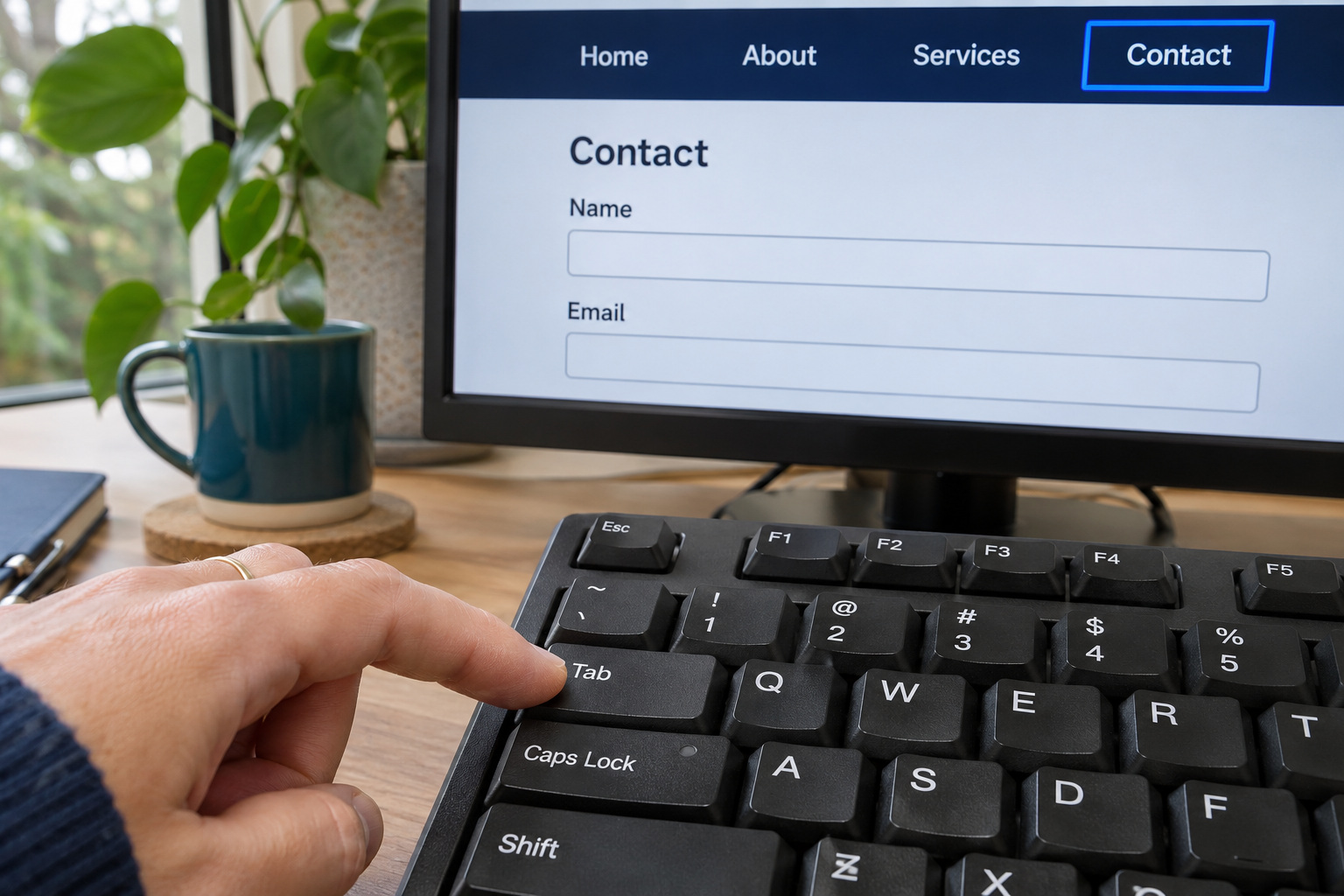
| Keyboard | Put the mouse aside. Press Tab from the top of the page and keep going. | A menu item, link or button can’t be reached, focus gets stuck, or you can’t see where you are. | 2.1.1 (A), 2.1.2 (A), 2.4.7 (AA) |
| Zoom | Press Ctrl and + (Cmd and + on a Mac) five times to reach 200 per cent. | Text is cut off, sits over an image, or needs sideways scrolling to read. | 1.4.4 (AA) |
| Form labels | On the contact form, click the words beside each field. | The cursor doesn’t land in the field, or a field has no visible label. | 3.3.2 (A) |
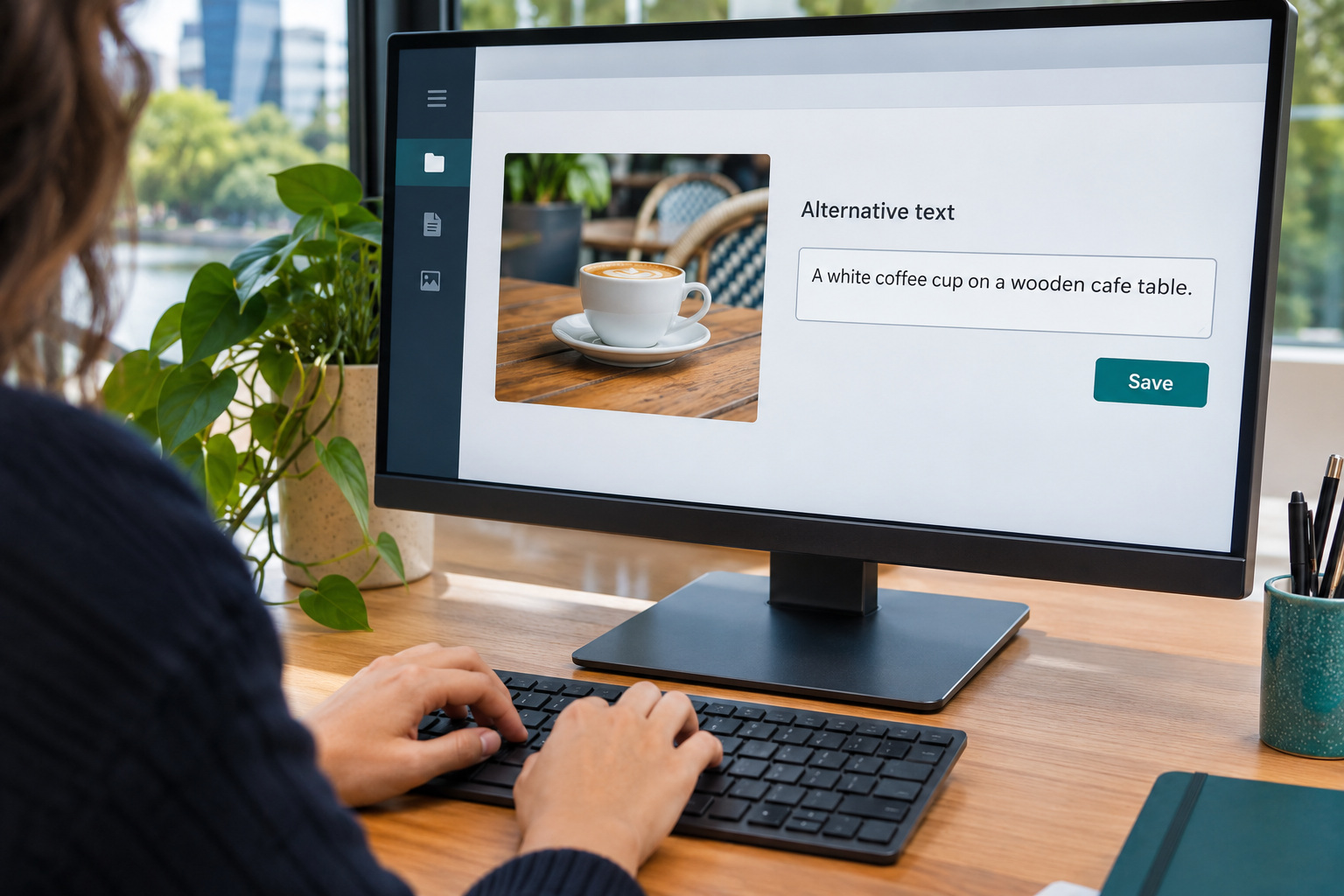
| Images | Use the W3C Easy Checks images bookmark, or ask whoever edits the site to show you each image’s alt text (its text description). | An image that carries information has no description, or an image of text doesn’t repeat the text. | 1.1.1 (A) |
| Contrast | View the page in greyscale for a rough check, then test anything hard to read with a contrast checker. | Normal text is below 4.5:1 against its background, or large text is below 3:1. | 1.4.3 (AA) |
| Video | Play any video on the site. | It has no captions, or only auto-generated ones. | 1.2.2 (A) |
If you only have time for one, do the keyboard check on the menu and the contact form. That is the route an online enquiry takes, and someone who can’t use a mouse has no other way through it.
The W3C is plain about its own quick checks. They ‘cover just a few accessibility issues’, and a page ‘could seem to pass these checks, yet still have significant accessibility barriers’.
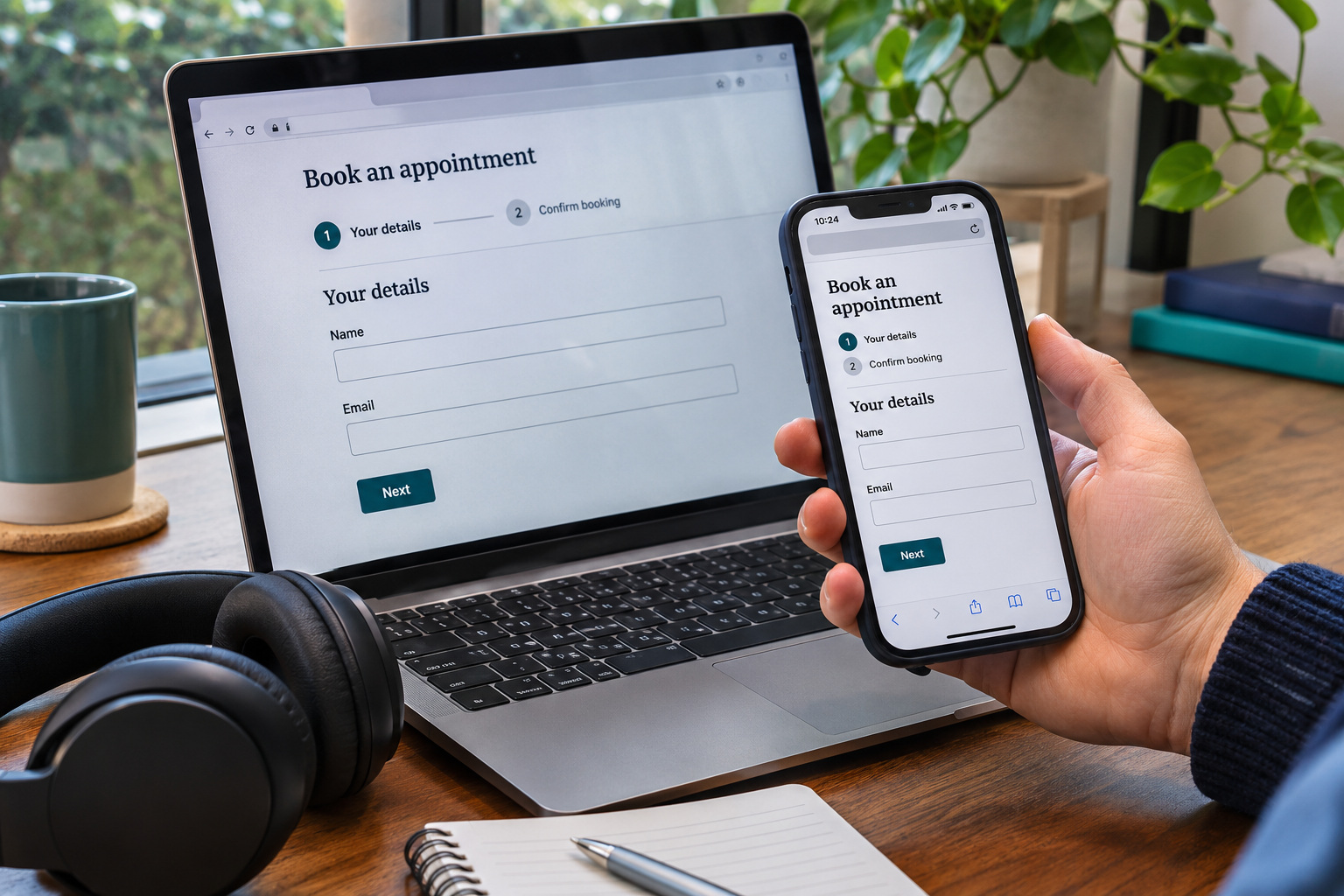
The checks above miss three things. You won’t hear how the page sounds through a screen reader. You won’t have tested the phone layout, and WCAG judges every version a page shows at different screen sizes. And if your booking or quote form runs over two pages, every step has to meet the level. A clean result means the obvious faults are gone. It doesn’t mean the site meets WCAG 2.2 Level AA.
The faults these checks turn up fall into two groups, depending on who can change them.
Fixes whoever adds content in WordPress can make:
Fixes that need a developer, because they live in the theme, template or form set-up:
Every item on both lists is a change to the site you already have. A rebuild only comes into it if the template itself can’t be changed.
Editor-level faults can come back with any update. Each new photo, video or page is either done properly or it isn’t, so run the checks again after any big content change.
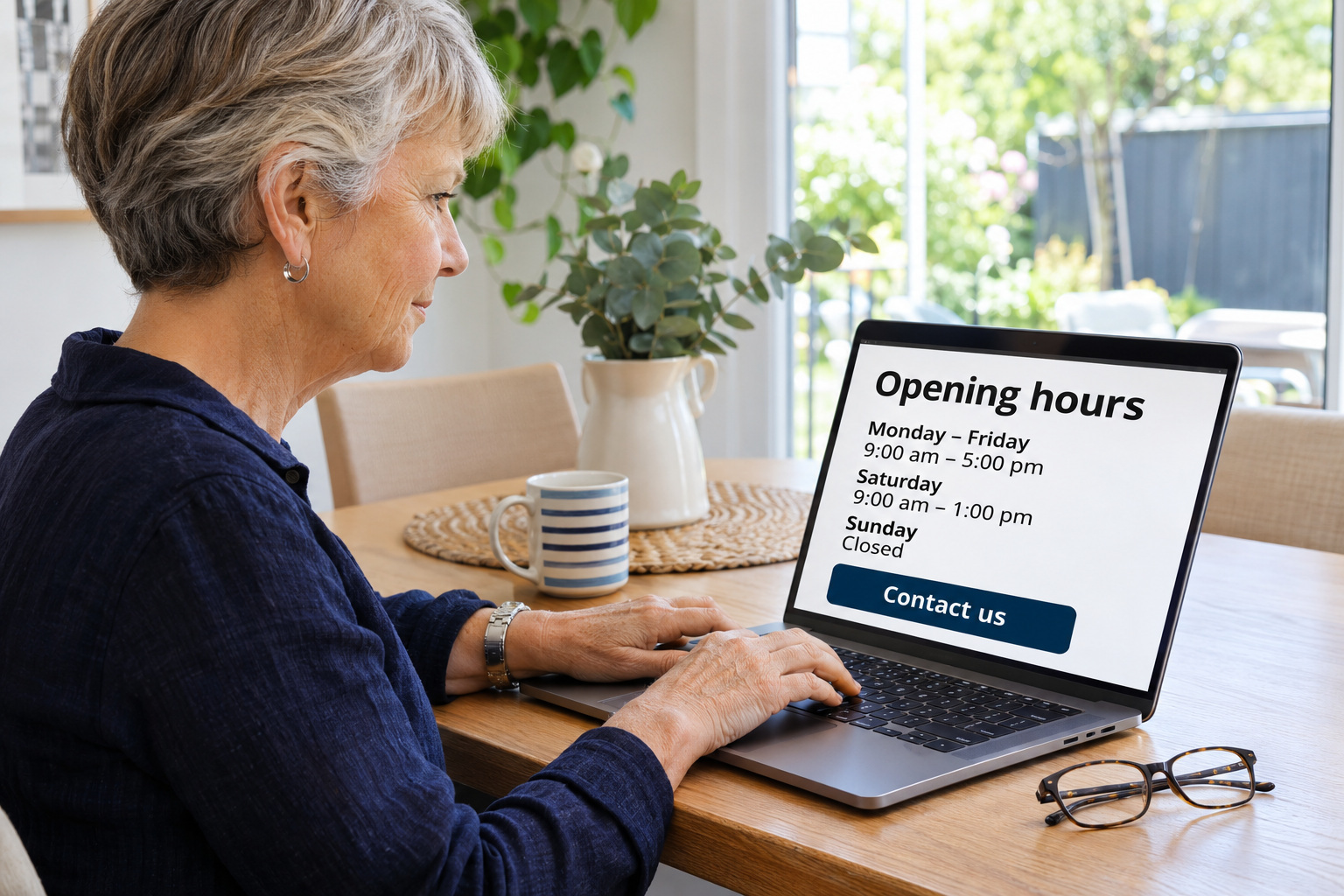
The W3C says its guidelines also make sites easier to use for older people whose abilities change with age. Its zoom check mentions someone who has simply forgotten their reading glasses. Captions help some people who find it hard to concentrate. Keyboard access matters to people with hand tremors, who can find a mouse very hard to use.

Whether a site meets WCAG is judged on the pages themselves: their images, labels, menus and video. A badge in the footer doesn’t change any of those.
Under WCAG, a logo saying a site meets the standard counts as a claim. A claim has to state its date, the WCAG version, the level and the pages it covers. A badge that states none of that isn’t a valid WCAG claim, and it gives you nothing to check. Captions show how an automatic fix can fall short. The W3C’s captions check says that if a video has only auto-generated captions, sufficient captions are not provided.
Ask whoever looks after your site to fix these and to check the result against WCAG 2.2 Level AA. Then run the keyboard check again yourself, because it shows you straight away whether the menu and form now work. If you need someone to make ongoing changes, CJ Digital’s website support packages include a monthly allocation of changes to an existing site.